Albert can be installed on Microsoft Teams without consenting any scope. Most of the setup happens on Microsoft Teams Admin Center.
Heads-up! Microsoft is changing how apps are installed.
Microsoft is rolling out App centric management (ACM), which replaces the older App setup policies for preinstalling apps. Once your tenant is migrated to ACM, the Setup policies page becomes read-only for installs (existing entries stay, but no new ones can be added). The steps below cover both flows — pick the one that matches your tenant.
Not sure which one you have? Open the Teams admin center → Teams apps → Manage apps. If the app row shows an Edit installs action (or an Installs tab on the app's detail page), you are on App centric management. If you only see Setup policies as the way to install apps, you are on the legacy flow.
Summary of this page
1. Allow employees to use the Albert Teams app
If your tenant is on App centric management
If your tenant is on the legacy flow
2. Preinstall Albert for your users
2A. Preinstall using App centric management (new flow)
2B. Preinstall using an App setup policy (legacy flow)
2B-i. Apply the policy to everyone
2B-ii. Apply the policy to a specific group
3. Confirm the installation in Riot
Troubleshooting
References
1. Allow employees to use Albert Teams app
The first step is to make sure employees in your tenant are allowed to use Albert. The starting point is the same in both flows, but the panel itself looks a little different in App centric management.
1. Open the Microsoft Teams admin center.
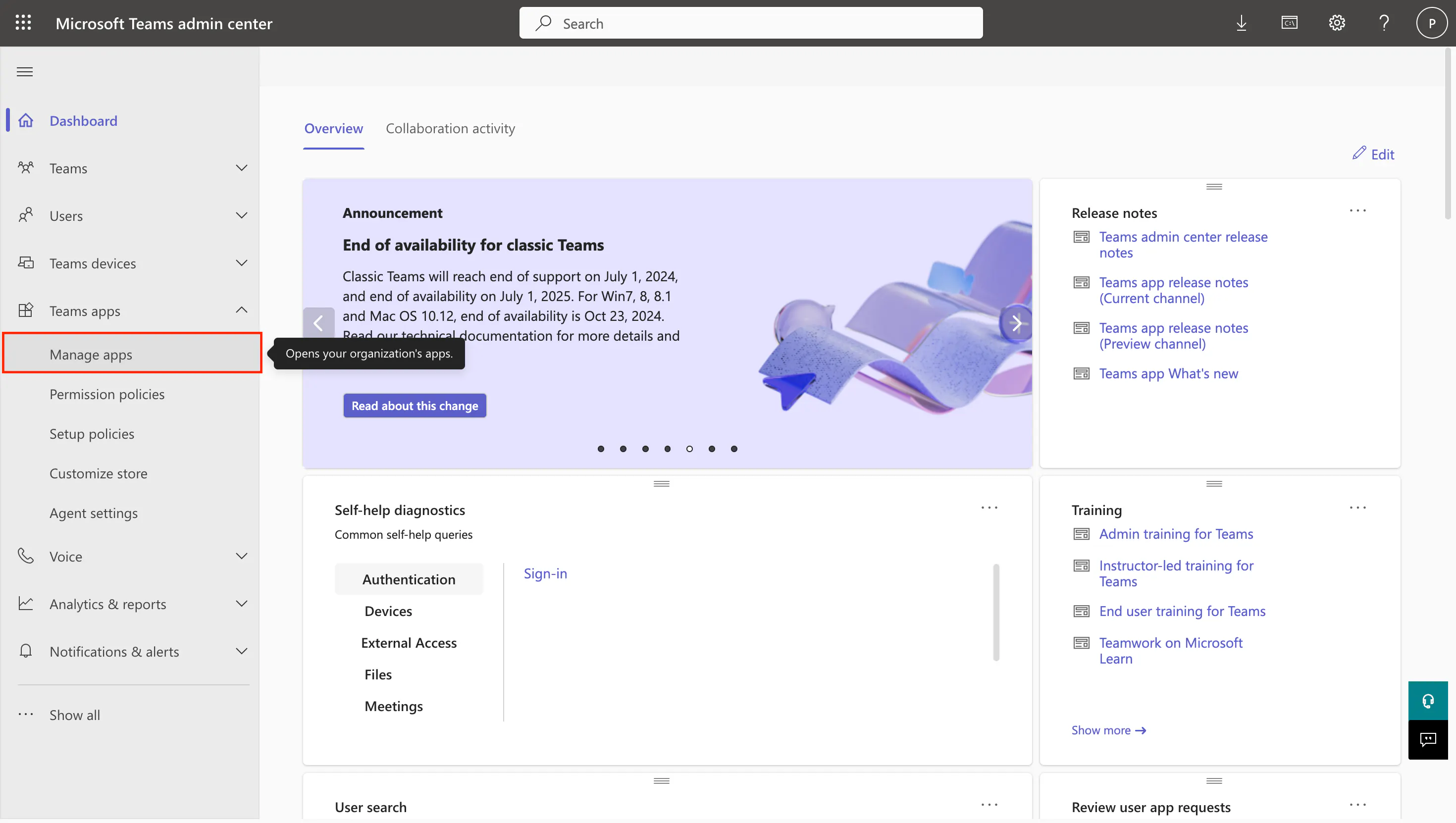
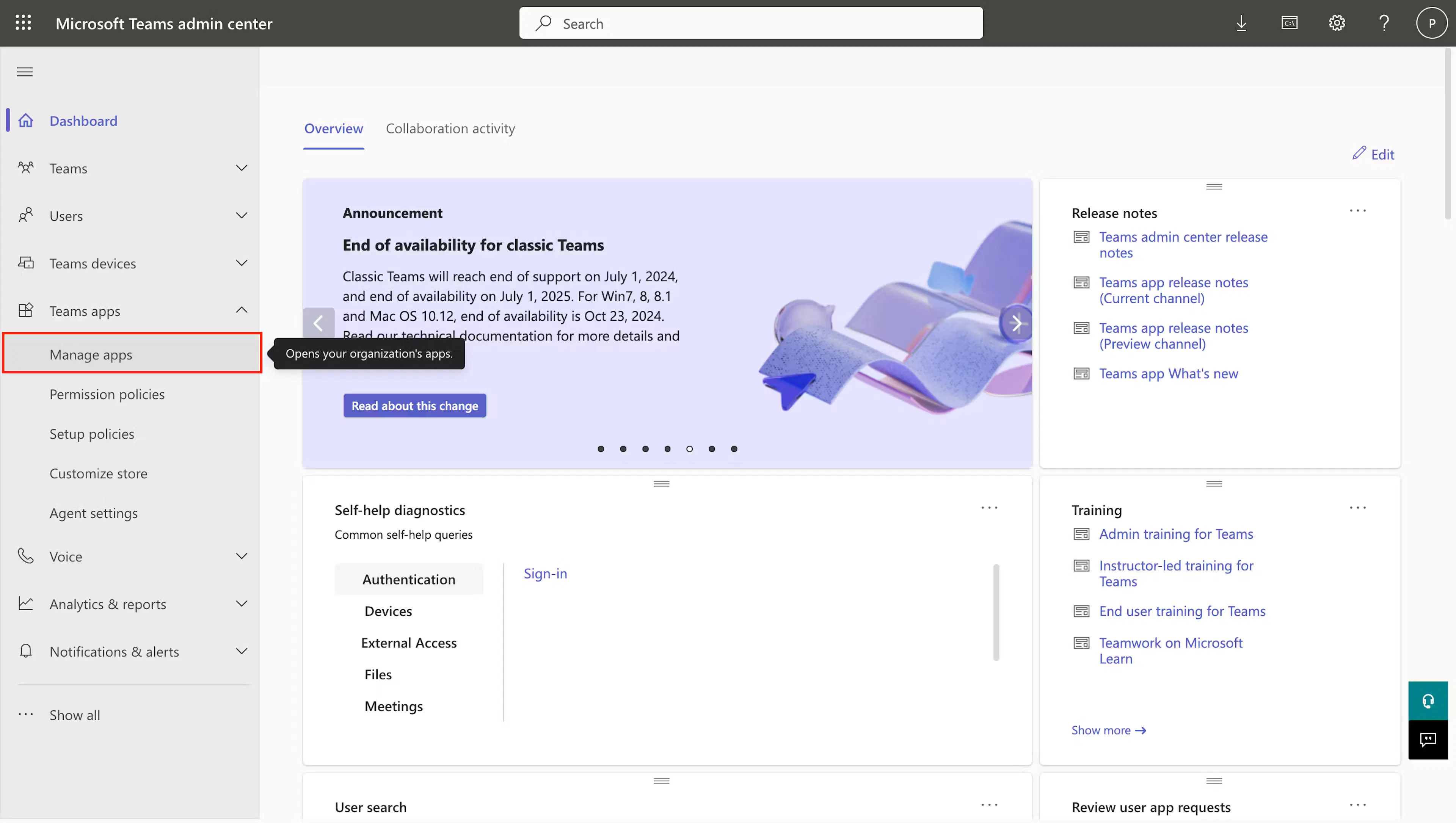
2. In the left menu, expand Teams apps and click Manage apps.
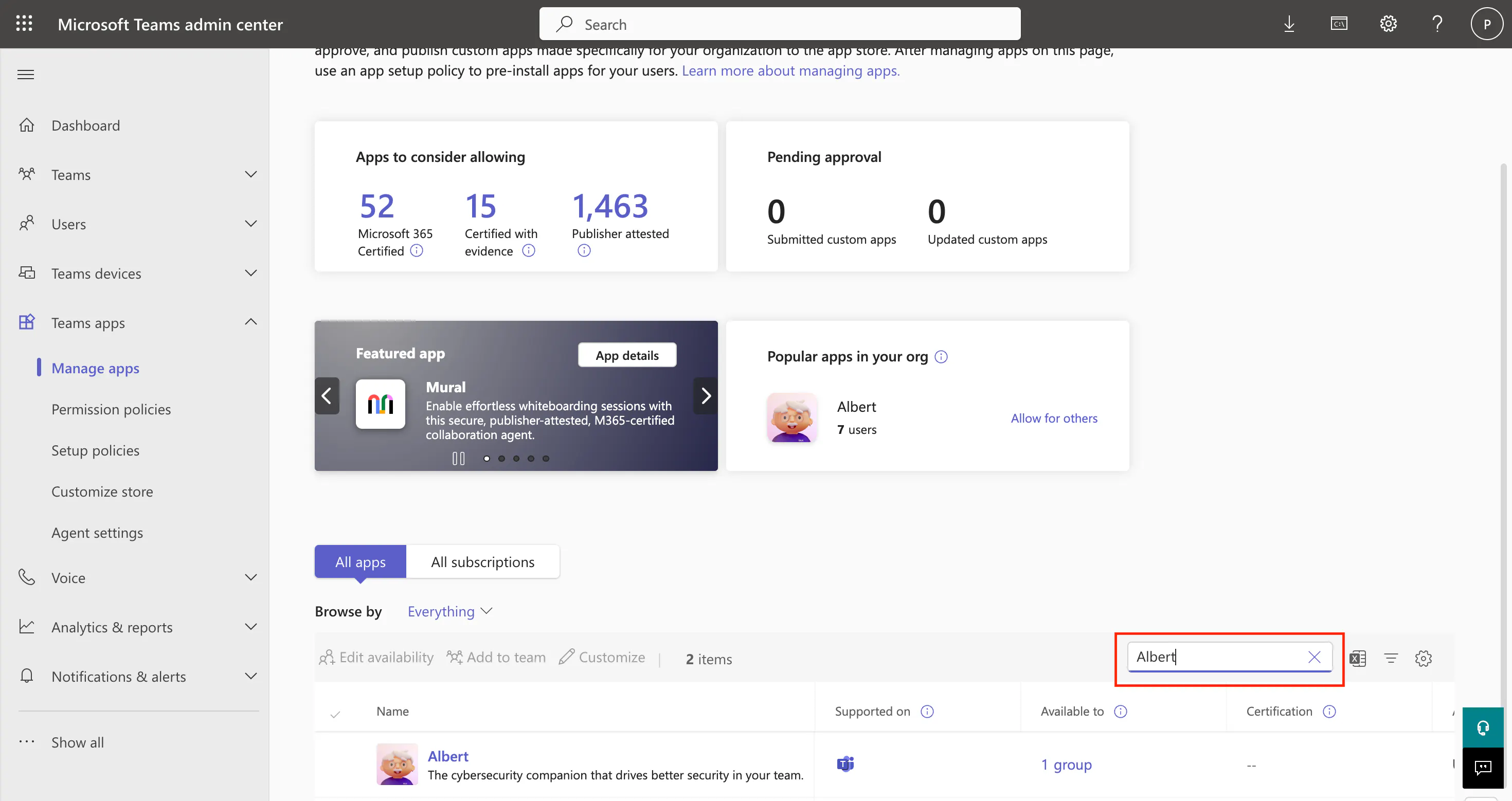
3. In the search bar at the top of the Manage apps page, type Albert and click the result.
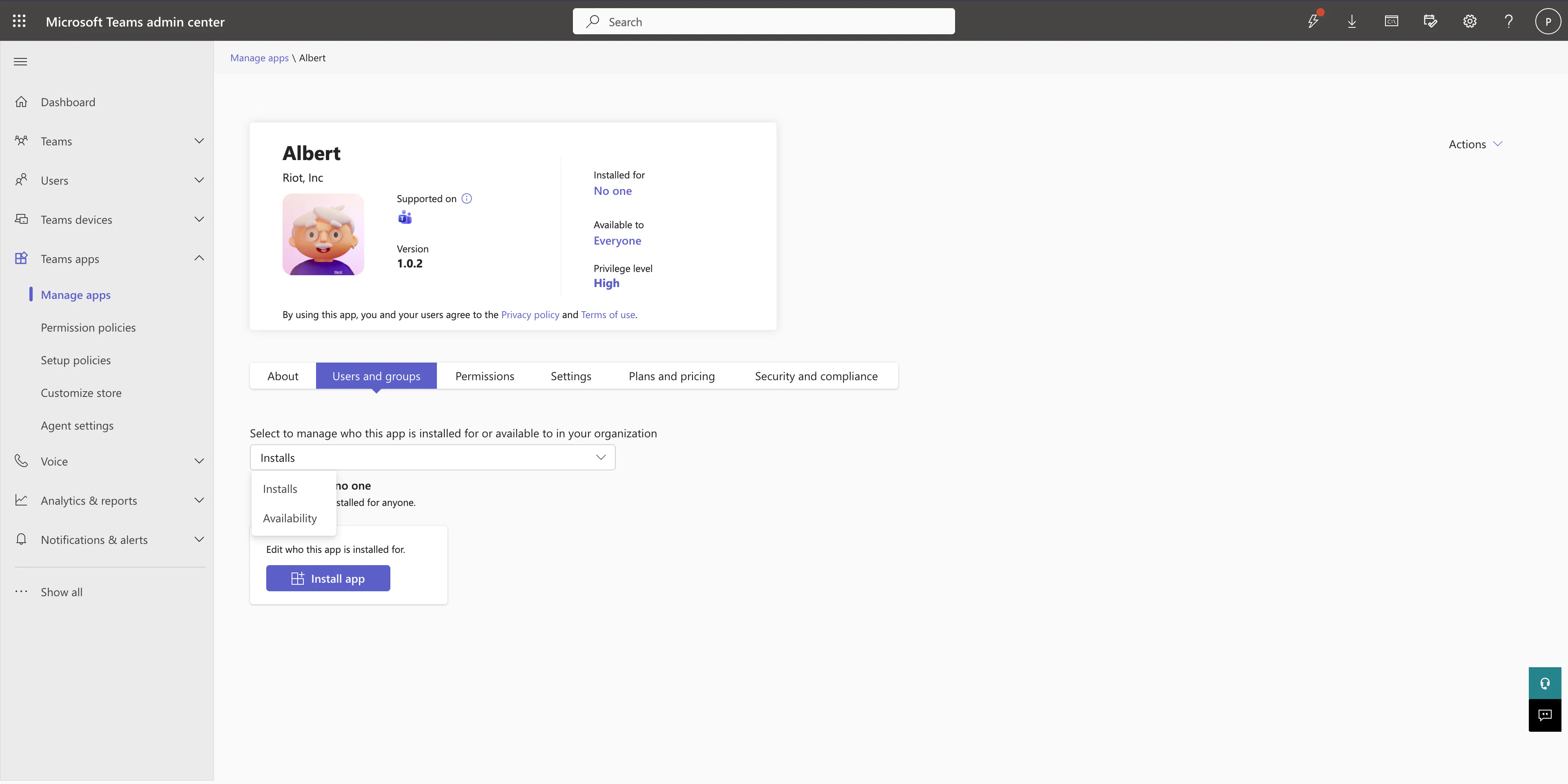
4. On the Albert app page, open the Users and groups tab.
If your tenant is on App centric management
You'll see a dropdown labelled Select to manage who this app is installed for or available to in your organization with two options: Installs and Availability.
1. Switch the dropdown to Availability.
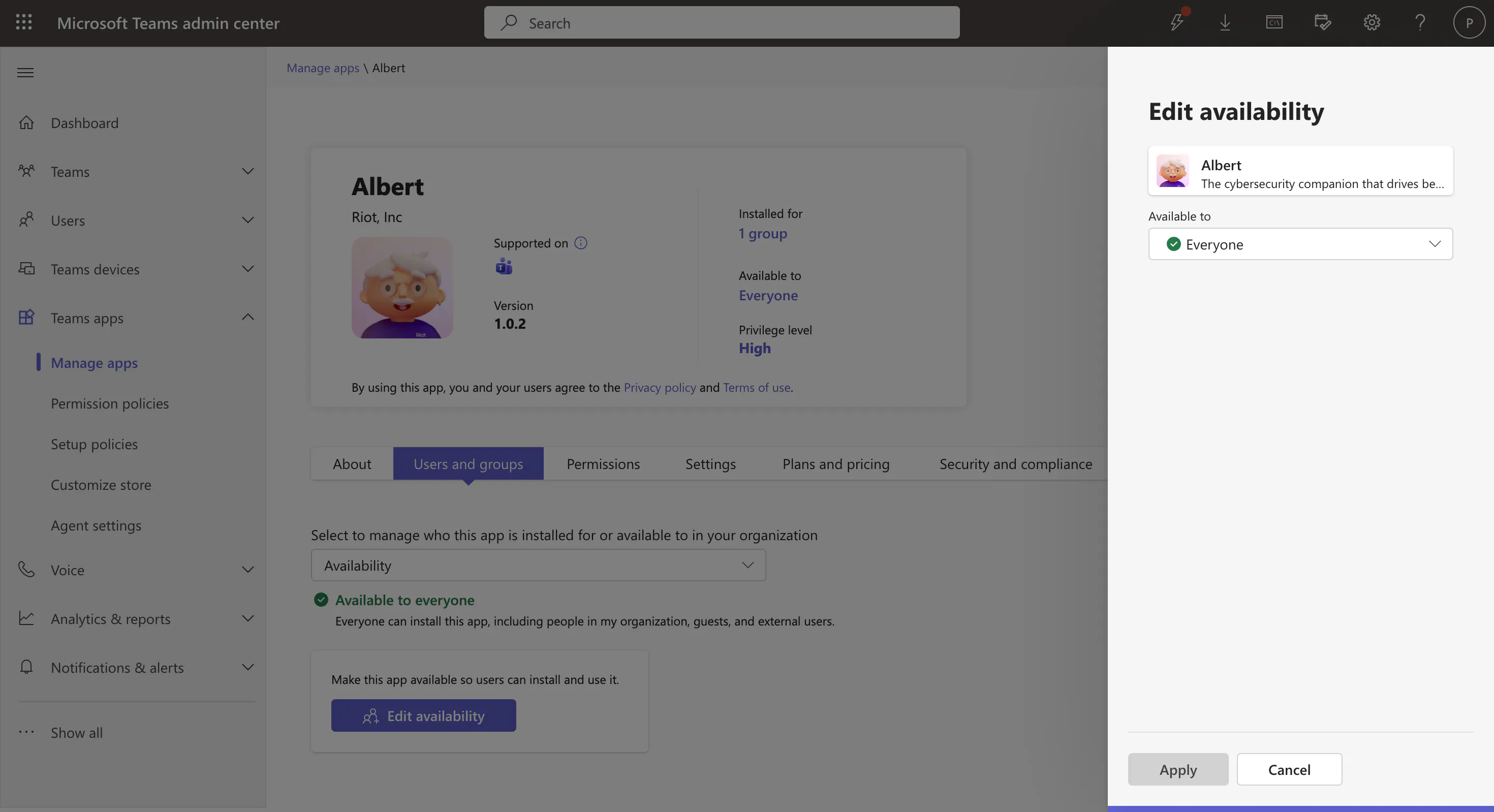
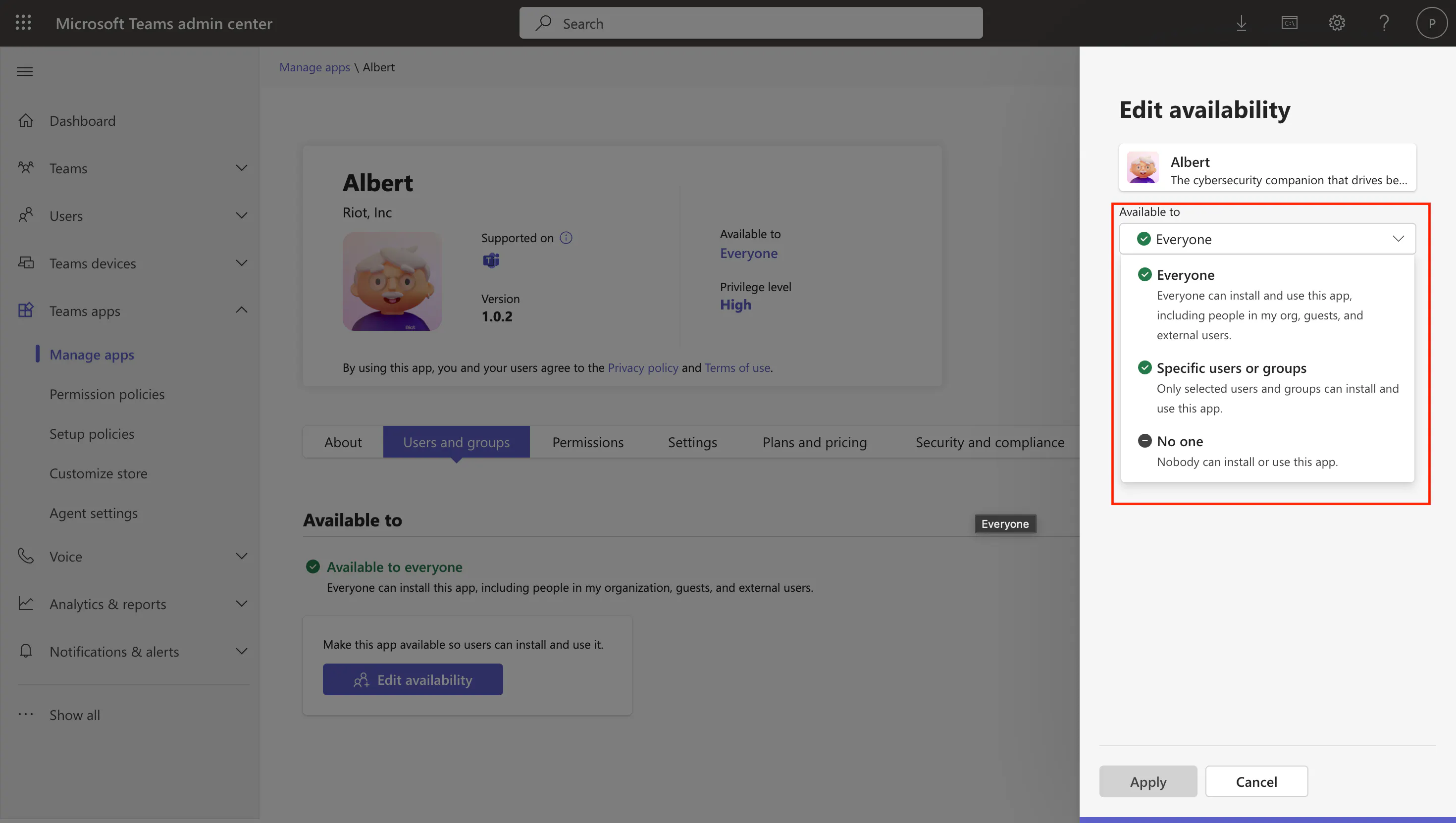
2. Choose Everyone or Specific users or groups. If you pick Specific users or groups, add the users/security groups/Microsoft 365 groups that should have access, then click Apply.
If your tenant is on the legacy flow
1. On the Users and groups tab, check the Available to field — it should be set to Everyone or n groups | m users.
2. Click Edit availability.
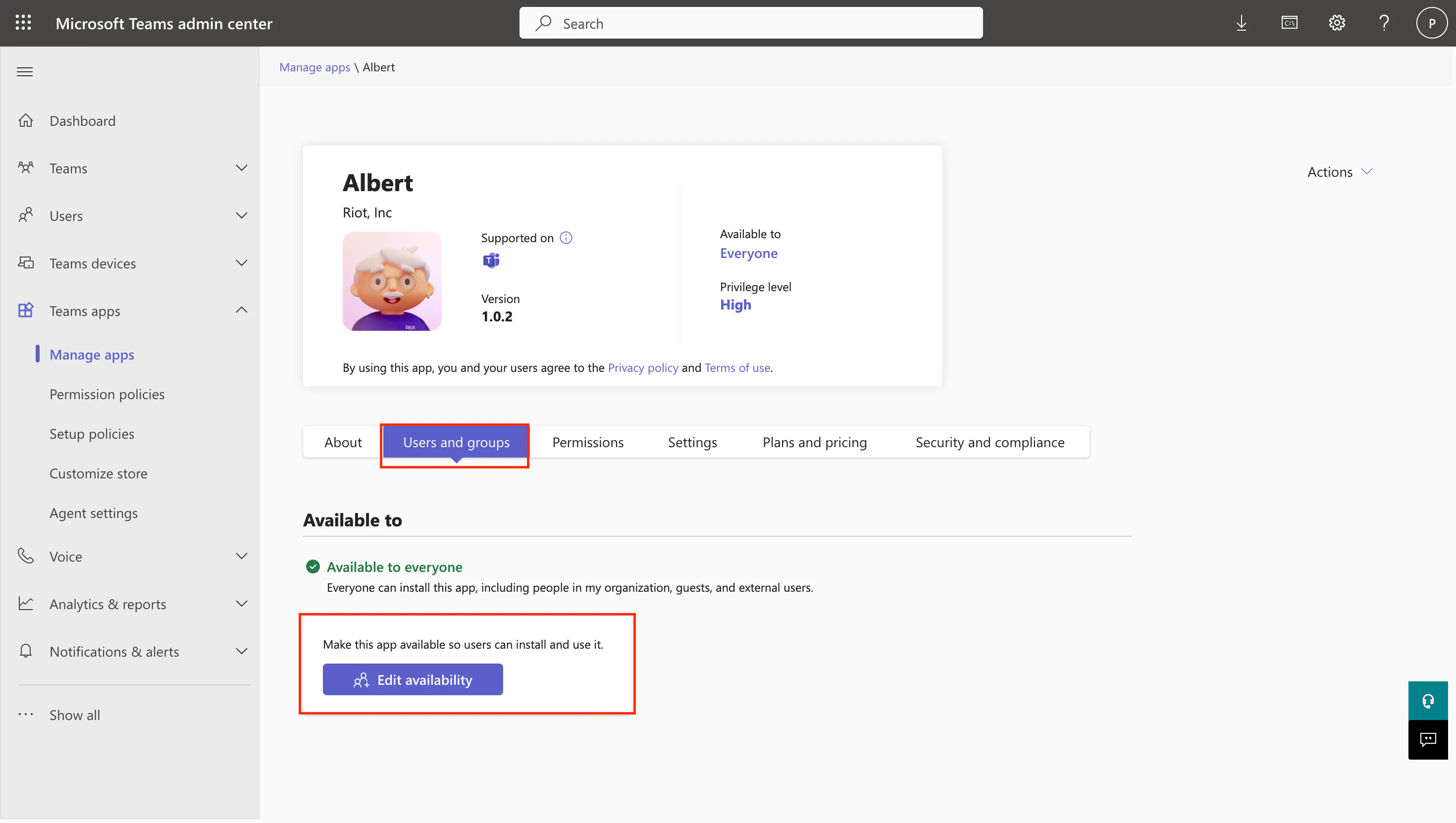
3. In the slide-over panel, pick Everyone or Specific users or groups (and add the audience if needed), then click Apply.
In both flows, make sure no org-wide setting is blocking custom or third-party apps. If Albert is greyed out or marked as Blocked, check Teams apps → Permission policies and Teams apps → Manage apps → Org-wide app settings to make sure third-party apps are allowed.
2. Preinstall Albert for your users
You can either let employees install Albert themselves from the Teams store, or — recommended — preinstall it for them so it appears automatically. Use 2A if your tenant uses App centric management, and 2B if you are still on App setup policies.
2A. Preinstall using App centric management (new flow)
This is the flow Microsoft is moving every tenant to. It lets you install an app directly from the app's page, without creating or editing a policy.
1. In the Teams admin center, go to Teams apps → Manage apps.
2. Search for Albert and either:
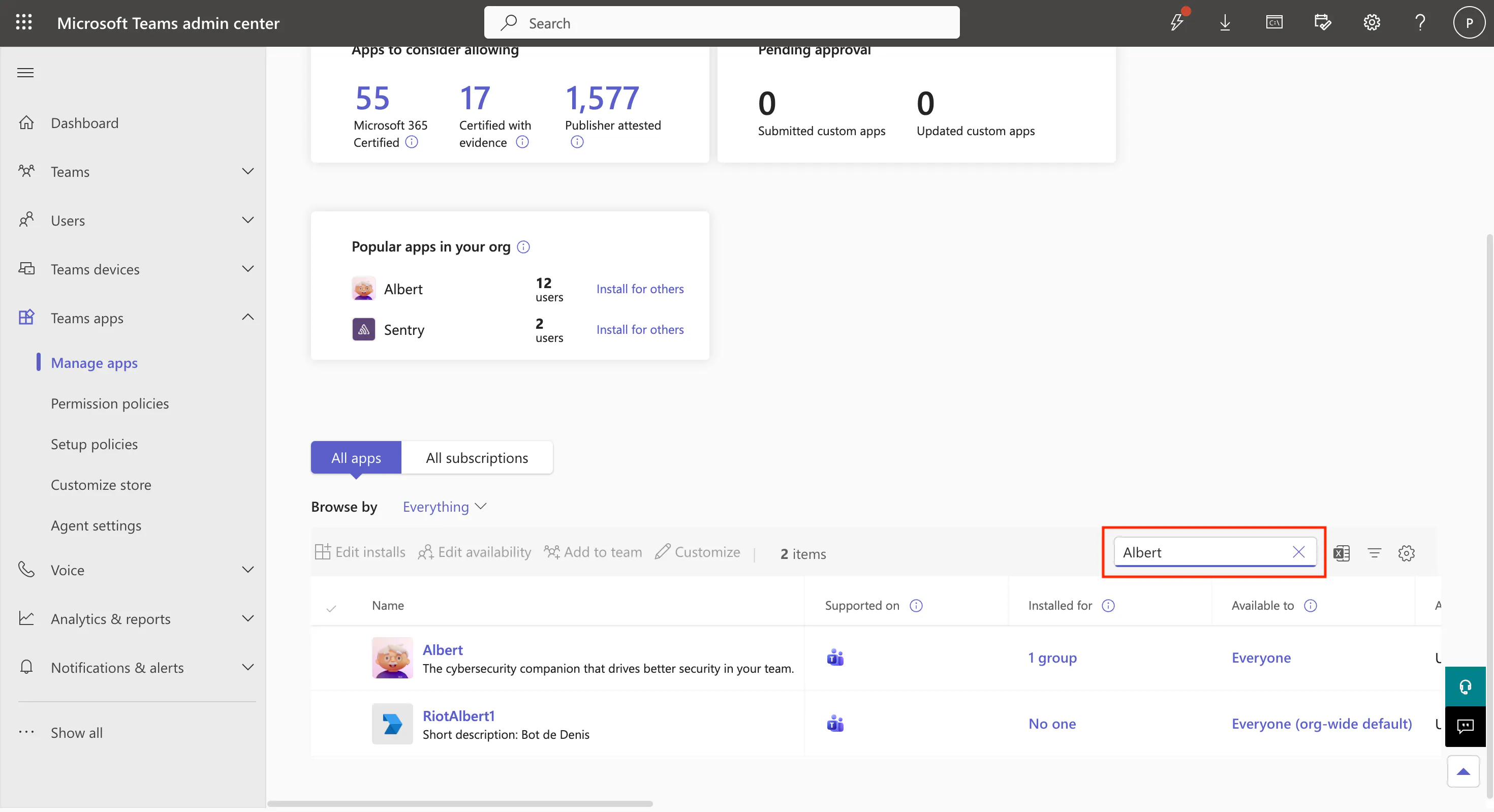
- Select the app row in the list and click Edit installs in the action bar, or
- Open the Albert app detail page, go to the Users and groups tab, switch the Select to manage who this app is installed for or available to in your organization dropdown to Installs, and click Install app.
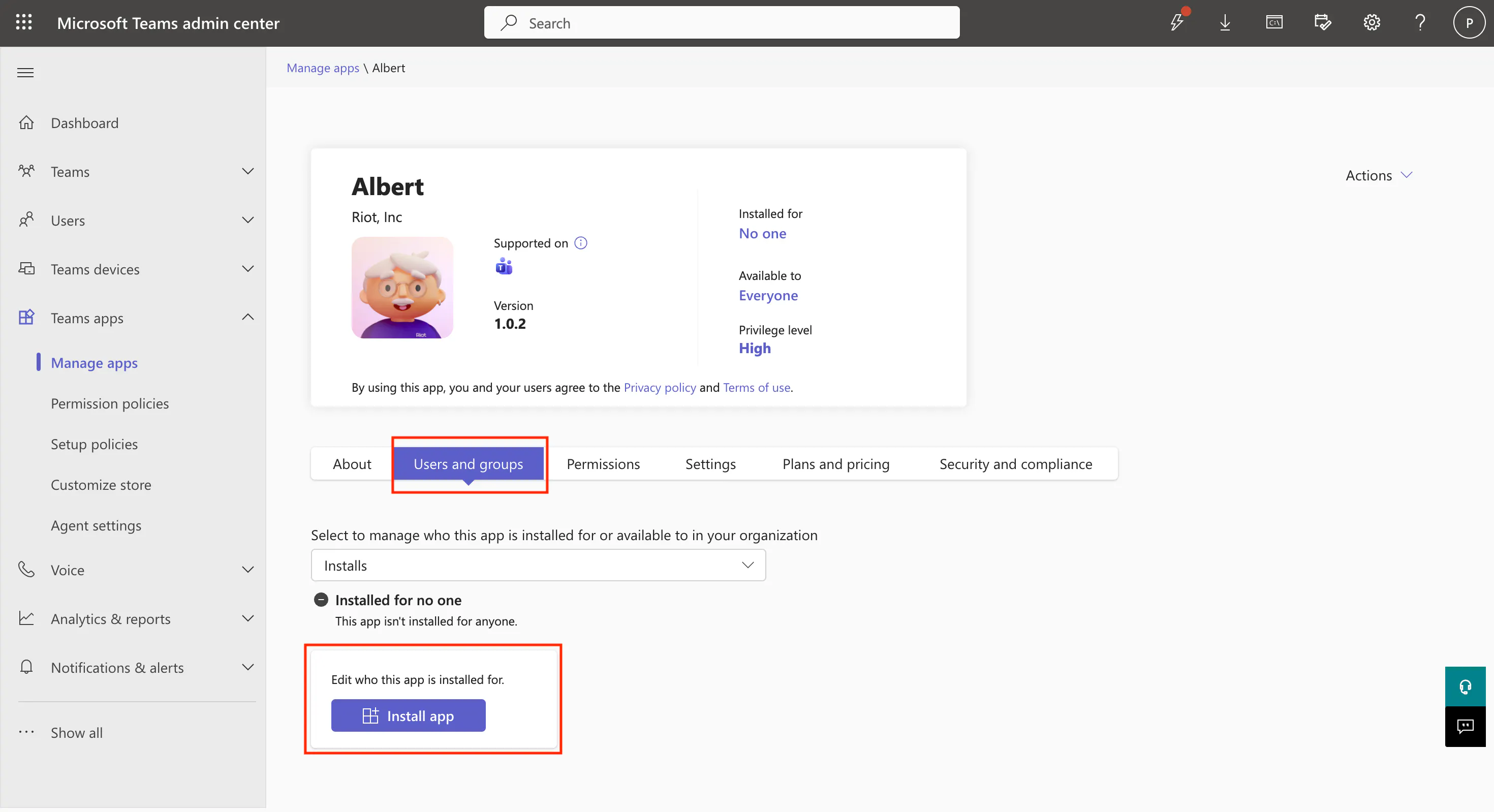
3. In the slide-over panel, choose who Albert should be installed for:
- Everyone — every licensed user in your tenant.
- Specific users or groups — pick the users and/or security groups / Microsoft 365 groups that should receive Albert.
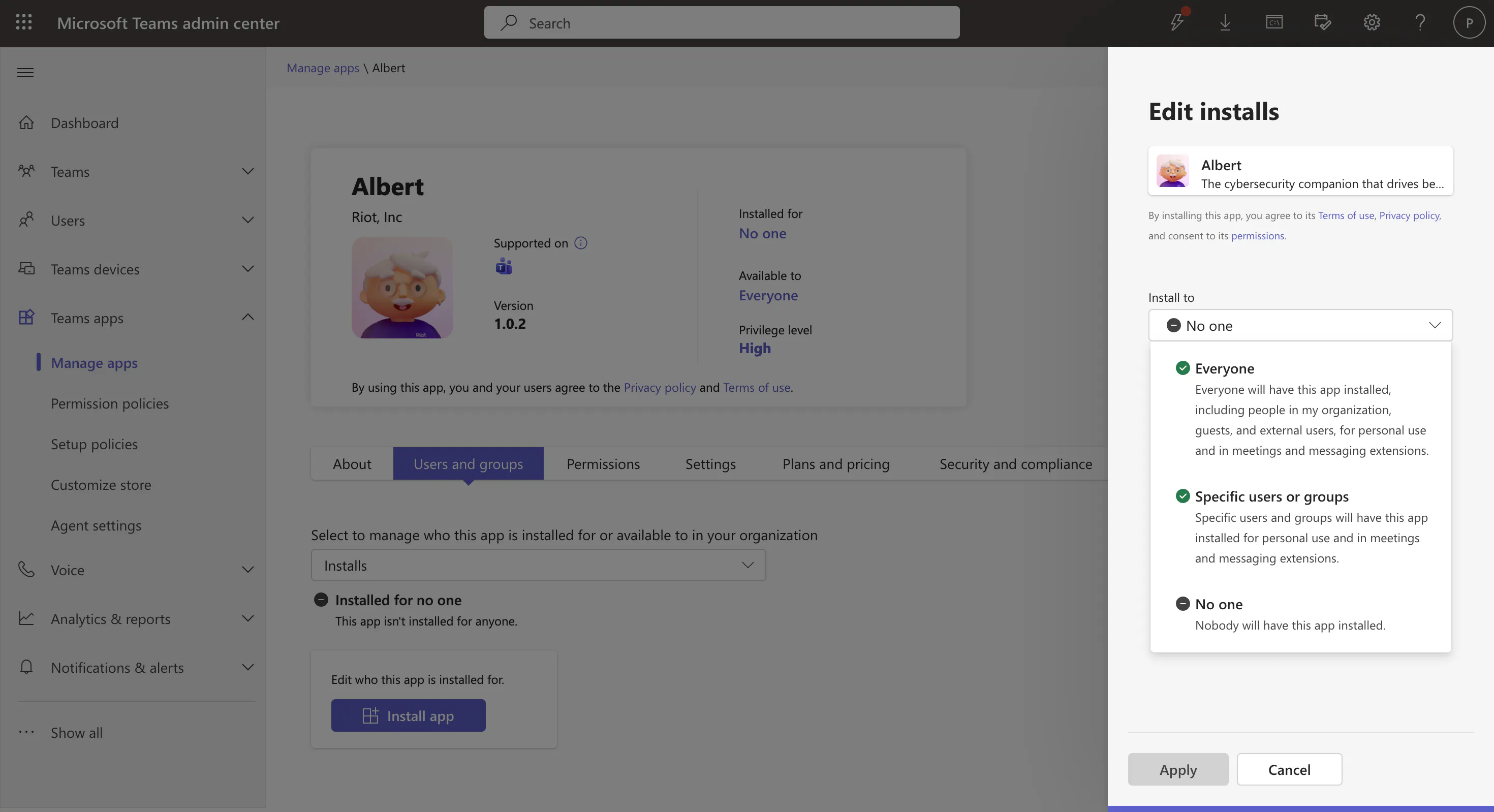
4. Click Apply.
That's it — the app is now both available to and installed for the selected users.
If you don't see Albert listed, confirm that the app is allowed at the org level and that you haven't blocked it via a permission policy.
2B. Preinstall using an App setup policy (legacy flow)
Use this section if your tenant has not yet migrated to App centric management. New entries can still be added until ACM is fully rolled out for your tenant.
1. In the Teams admin center, go to Teams apps → Setup policies.
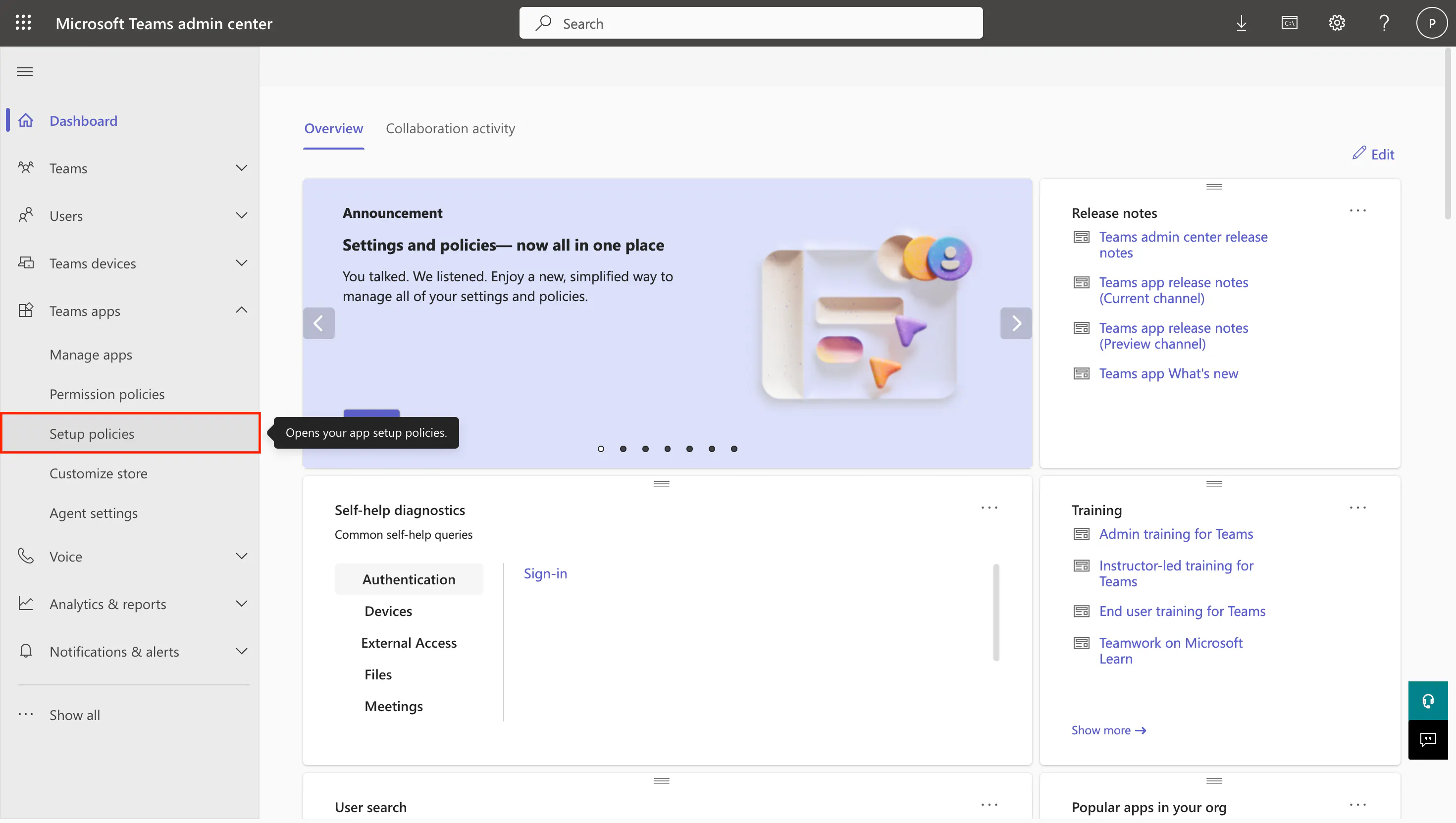
You should see at least these two default policies:
- Global (Org-wide default) — applied to every employee. You can add or remove apps but cannot disable it or restrict its audience.
- FirstLineWorker — a default policy for frontline workers. You cannot edit its installed apps.
You now have two options: apply the policy to everyone (2B-i.) or to a group of employees (2B-ii.).
2B-i. Apply the policy to everyone
If you want Albert installed for every employee, edit the global policy.
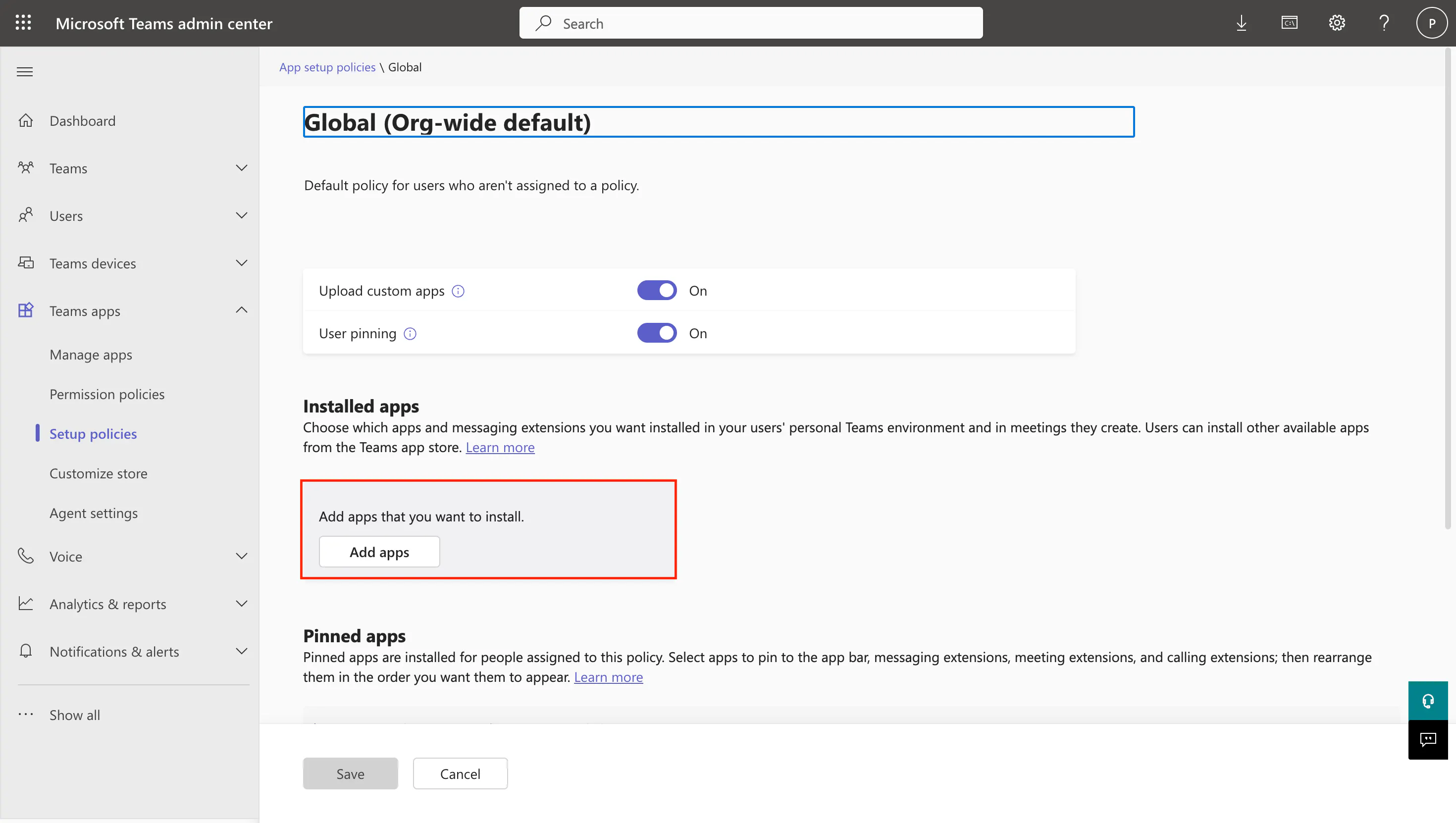
1. Click Global (Org-wide default).
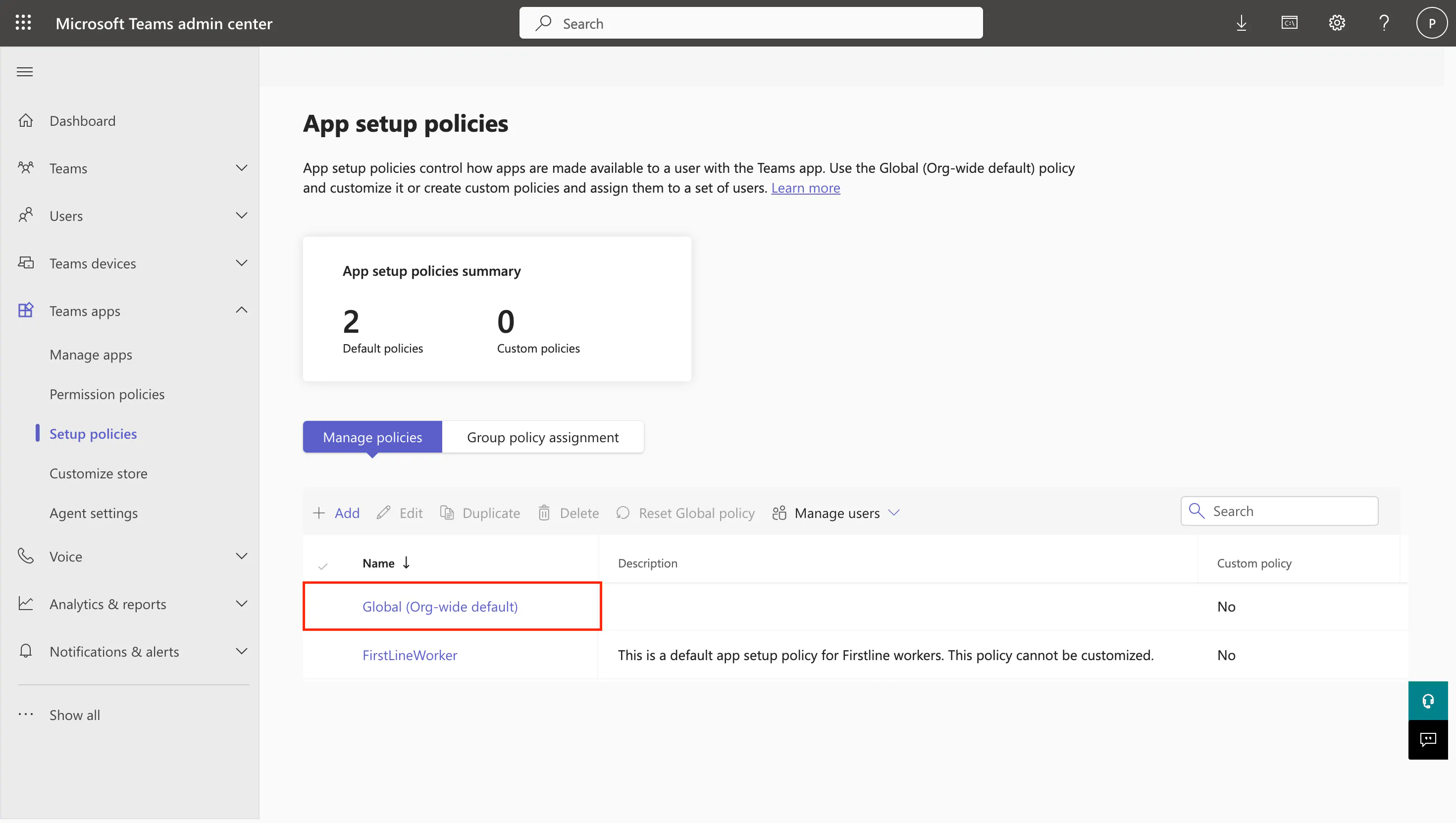
2. Under Installed apps, click Add apps.
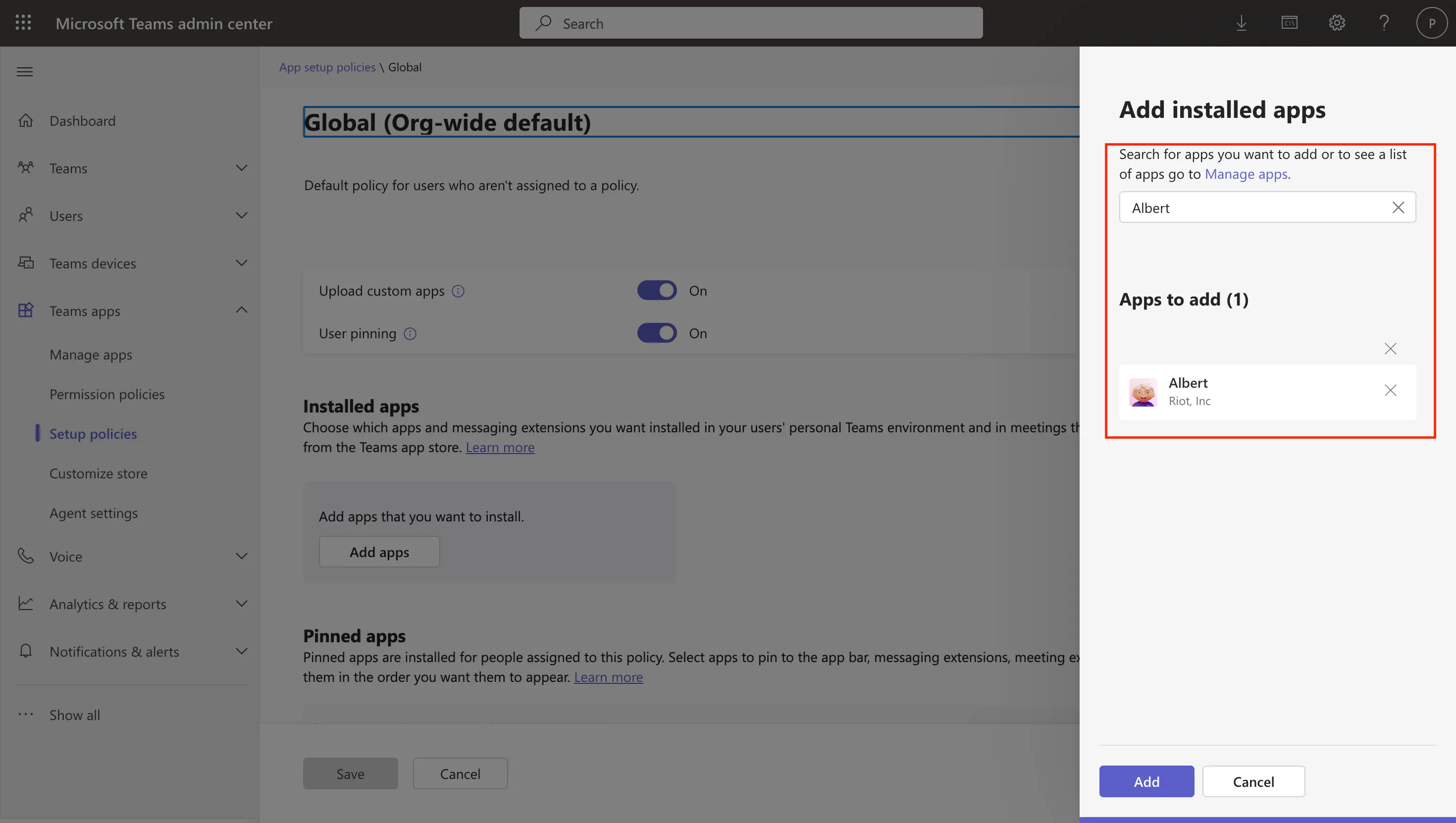
3. In the slide-over, search for Albert, select it, and click Add at the bottom.
4. (Optional) Under Pinned apps, click Add apps and add Albert again — this pins Albert to the left rail in the Teams client so users see it immediately.
5. Click Save. Skip ahead to step 3.
2B-ii. Apply the policy to a specific group
If only a subset of employees should get Albert, create a custom policy.
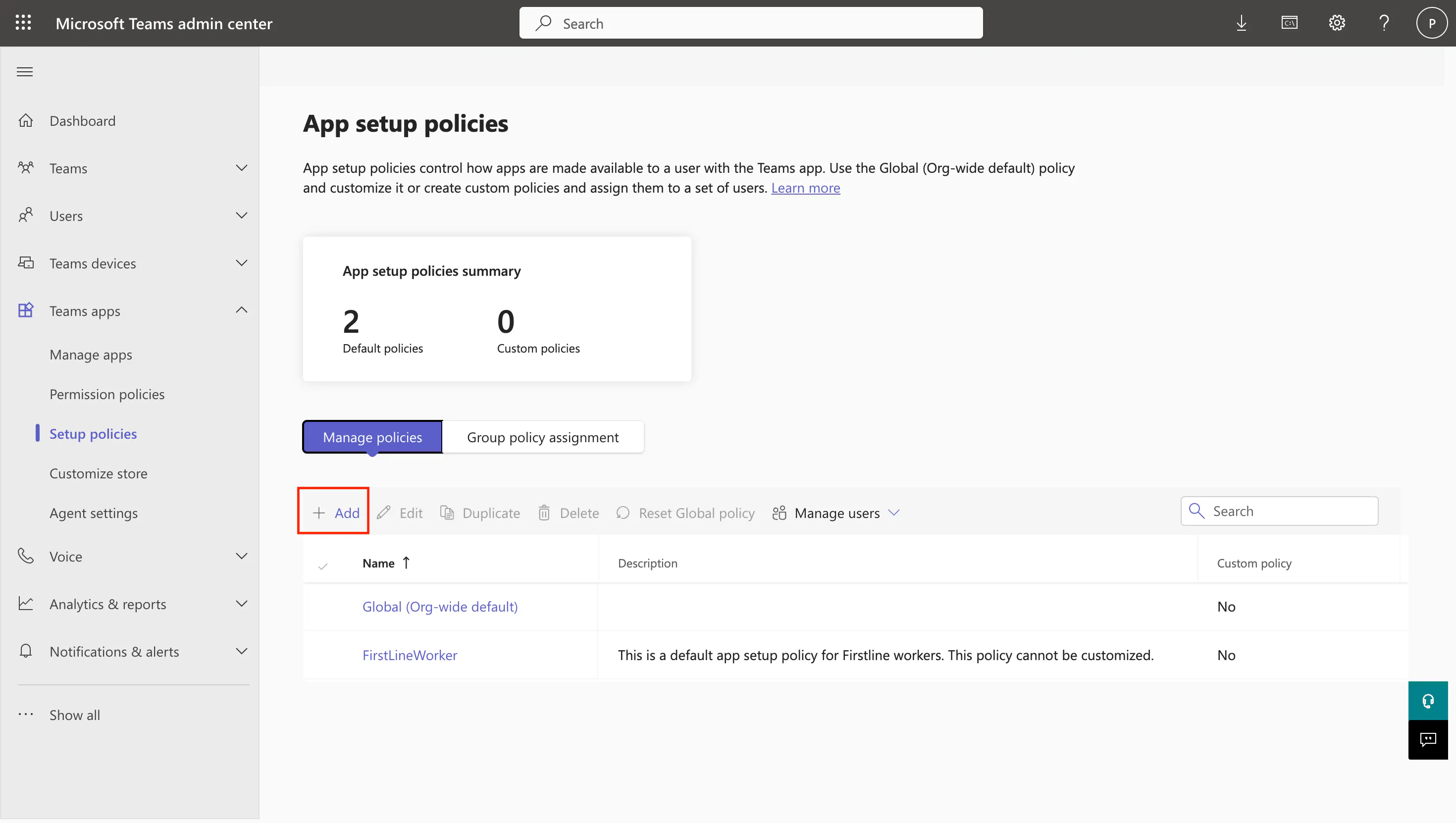
1. On the Setup policies page, click + Add.
2. Give the policy a clear name (e.g. Albert auto-install) and a short description.
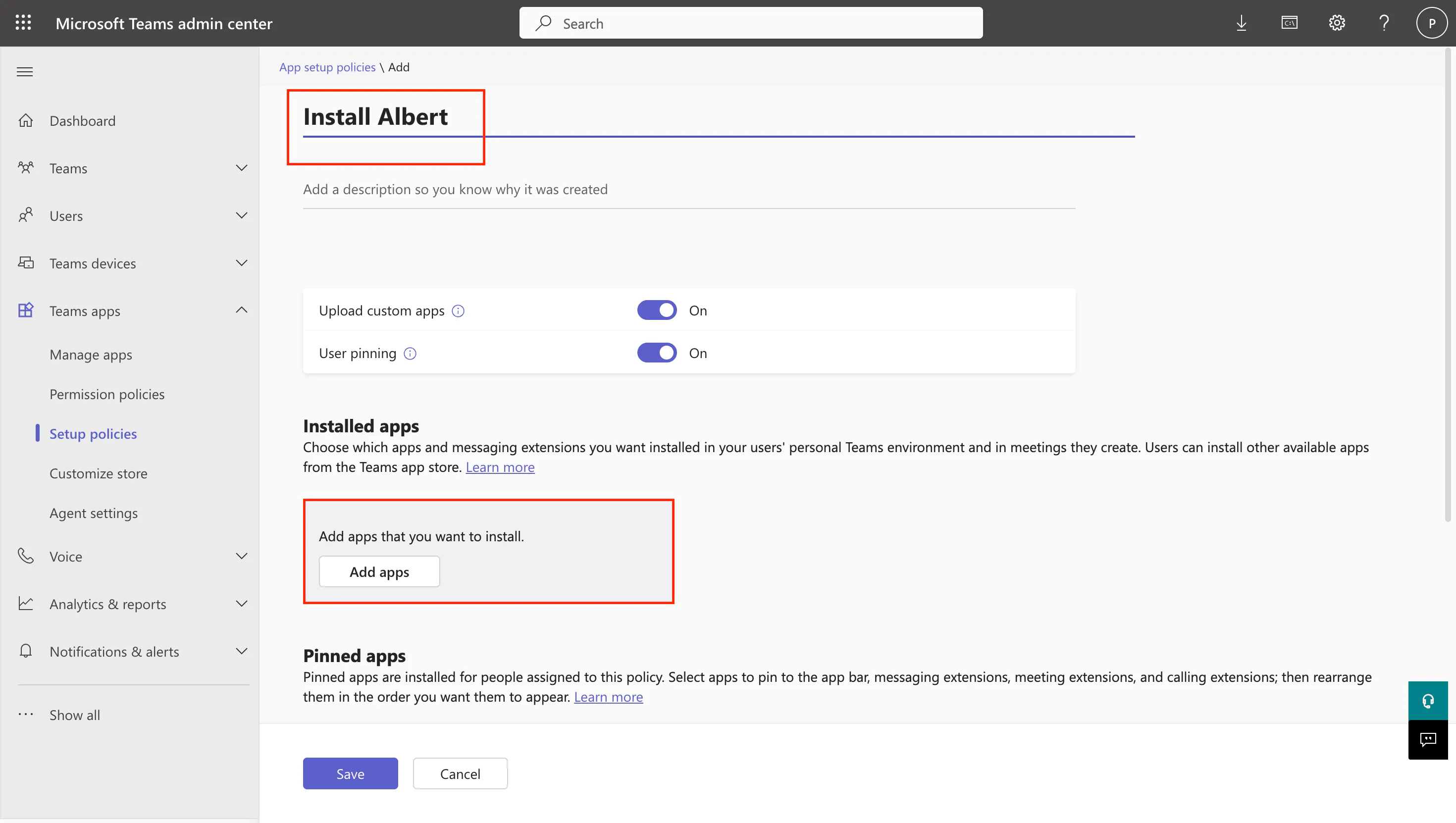
3. Under Installed apps, click Add apps, search for Albert, select it, and click Add.
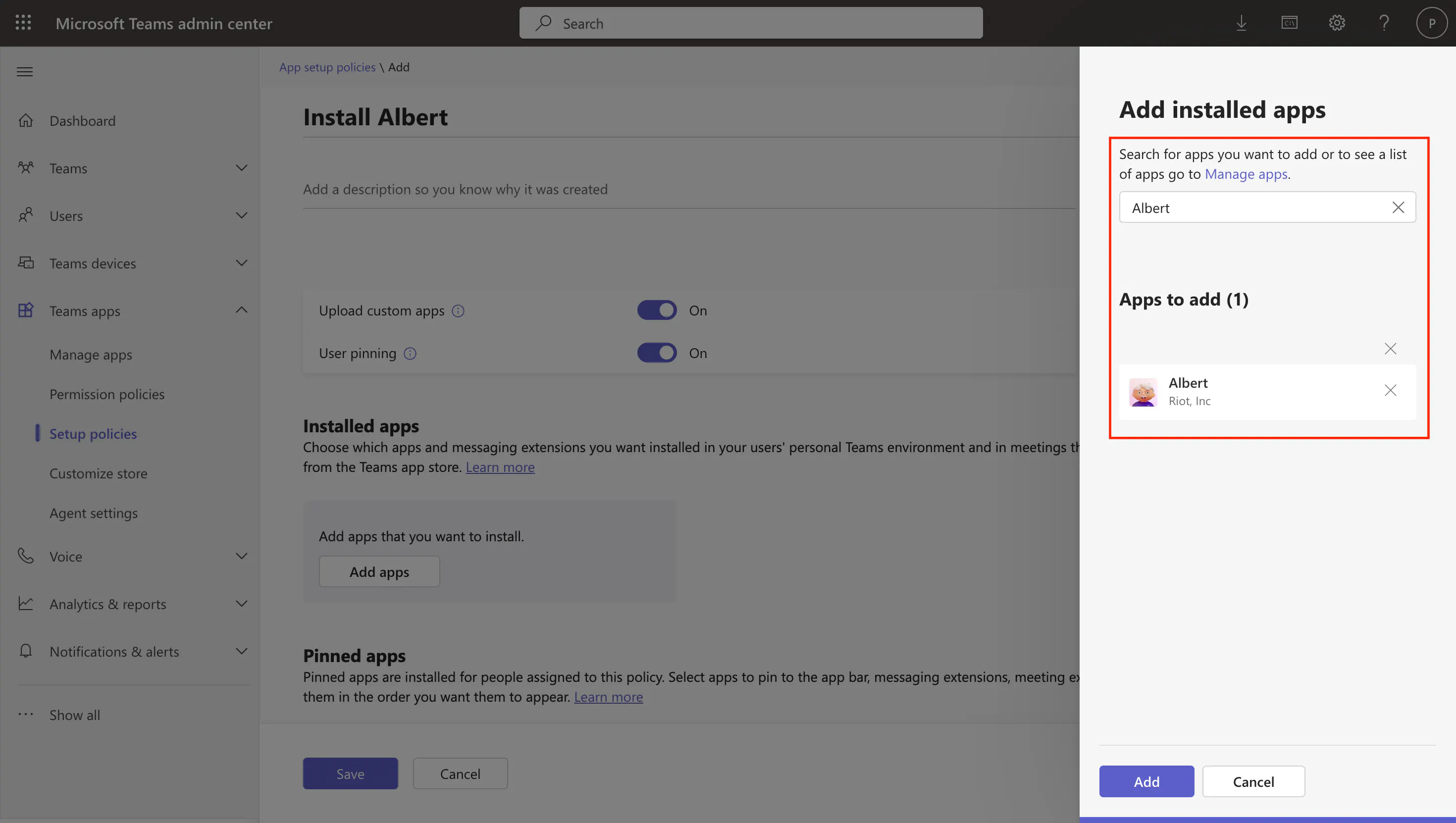
4. (Optional) Add Albert under Pinned apps to surface it on the Teams left rail.
5. Click Save.
6. Open the Group policy assignment tab.
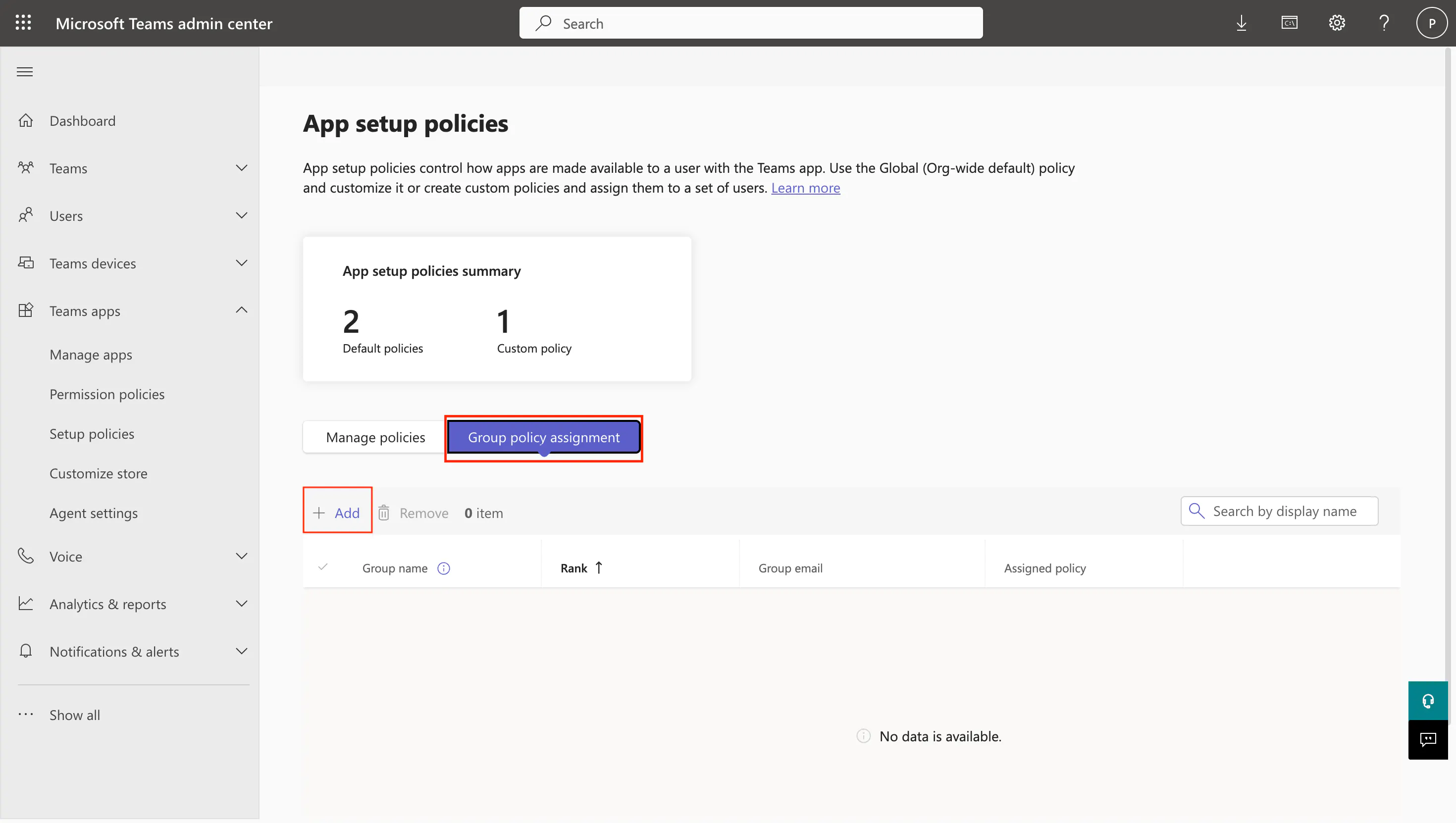
7. Click + Add and, in the slide-over, pick the target group, select the policy you just created, set a ranking, and click Apply. Repeat for any other groups that should receive Albert.
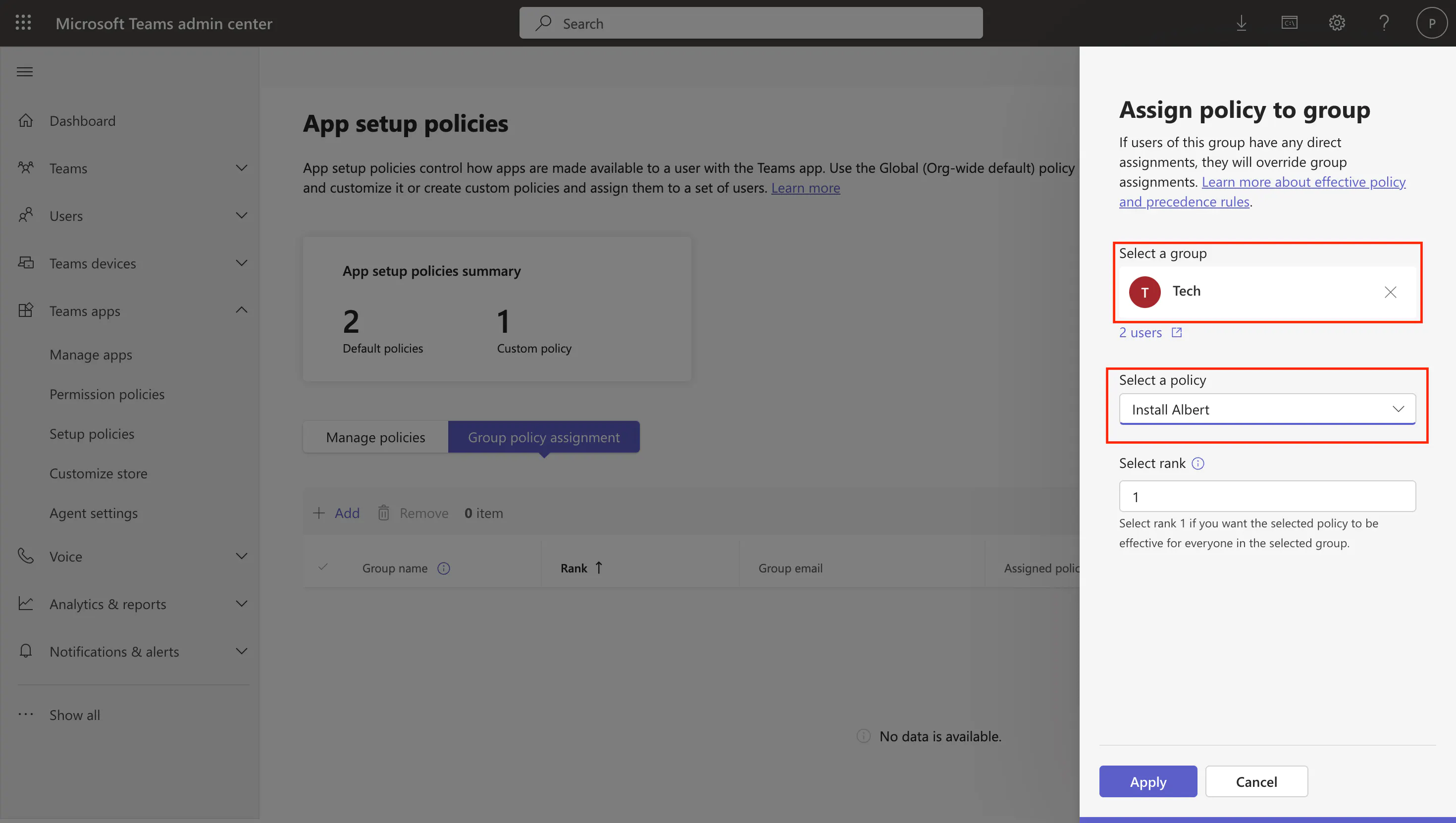
Group policy assignments require the target to be a security group or Microsoft 365 group. To assign to individual users, use the Users page in the Teams admin center instead.
3. Confirm the installation in Riot
Once the install is configured on the Microsoft side, head back to the Riot platform to confirm everything is wired up.
- Open Riot and go to Settings → Notifications.
- Click the Connect Teams button, then click Confirm install.
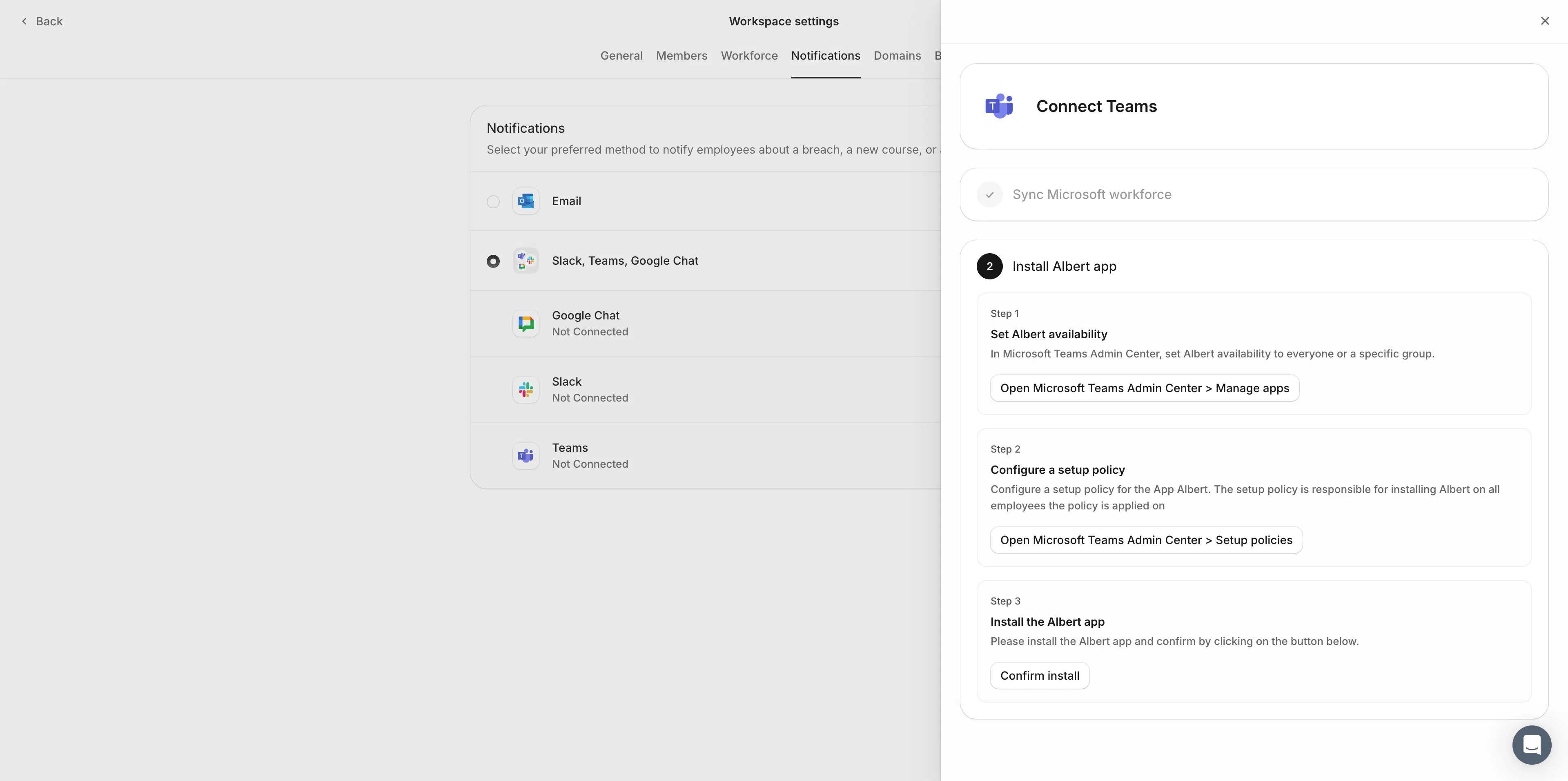
⚠️ Auto-install can take a few hours to roll out, regardless of which flow you used. If you want to verify the integration immediately, open the Teams client on your own account, install Albert from the Teams store manually, and click Confirm install in Riot. You'll appear as the only employee with Teams in the Riot platform — that's expected. As Microsoft propagates the install to the rest of your tenant, the other employees will switch over automatically and Riot will receive the install events from Microsoft.
Troubleshooting
- Albert is not visible in Manage apps — confirm that third-party apps are allowed under Teams apps → Manage apps → Org-wide app settings.
- Users say "Your admin has not enabled this app" — Albert is blocked by an App permission policy. Edit the policy assigned to those users (or the global policy) and allow Albert.
- Install completed but users still don't see Albert — Microsoft caches policy/install assignments. Allow up to a few hours, or have the user sign out and back into Teams.
- Setup policy changes are read-only — your tenant has migrated to App centric management. Use the steps in 2A instead.
References
- Microsoft Learn — Preinstall Teams apps for your org users
- Microsoft Learn — Use and migrate to app centric management